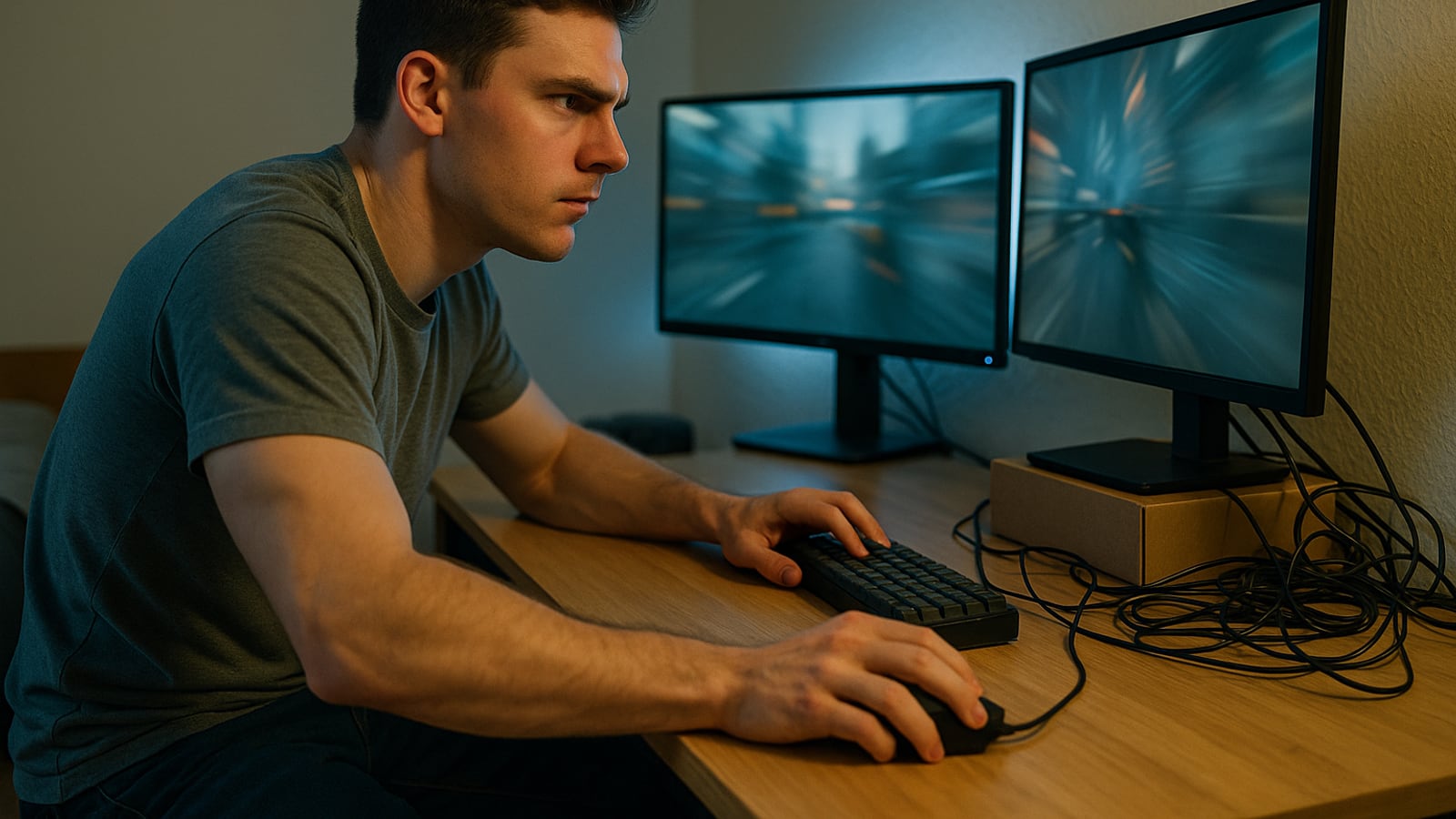
Plug in your first 144 Hz monitor and you'll notice it before a game even loads. Drag a window across the desktop. Move the mouse in a circle. The cursor stops being a strobing stack of ghosts and becomes an object that's actually there. That single moment sells more monitors than any spec sheet ever has, and it costs about $220 for a 27-inch 1440p panel from Dell, LG, AOC or whoever's on sale that week.
Everything after that leap is smaller. Much smaller. The industry doesn't advertise it that way because 240 and 360 and 480 look great on a box, so it's on you to know where the money stops working.
The numbers explain themselves
A frame at 60 Hz sits on screen for 16.7 milliseconds. At 144 Hz, 6.9 ms. At 240 Hz, 4.2 ms. At 360 Hz, 2.8 ms.
Read those gaps again. Going from 60 to 144 cuts nearly 10 ms out of every frame. Going from 144 to 240 buys you 2.7 ms. Going from 240 to 360 buys 1.4 ms, which is less than a tenth of what your first upgrade gave you, for roughly the same jump in price.
That doesn't mean 240 Hz is fake. If you play Counter-Strike, Valorant, Apex or Rocket League seriously and your hands are good, the extra smoothness during fast flicks is real and you'll feel it in tracking. But it's a refinement for people already good at the game. It won't make a 1.0 K/D into a 1.4.
Buy 144 or 165 Hz first. Buy 240 only if competitive shooters are the main thing you do, and only after the rest of your setup is sorted.
Resolution is really a density question
Nobody sees "1440p." What your eye registers is pixels per inch, which depends on the screen size.
- 1080p on a 24-inch screen: about 92 PPI. Sharp enough. Still a fine budget choice.
- 1080p on a 27-inch screen: about 82 PPI. Text looks chunky, edges look soft, and you'll see it from three feet away. Avoid.
- 1440p on 27 inches: about 109 PPI. The sweet spot, and it has been for years.
- 4K on 27 inches: about 163 PPI. Gorgeous. Also brutal on a graphics card.
- 4K on 32 inches: about 138 PPI. The best-looking desk setup most people will ever own.
Sitting distance matters more than anyone admits. At a desk you're maybe 24 to 30 inches from the glass, close enough that density counts. On a couch eight feet back, it doesn't, which is why a 55-inch TV at 4K looks flawless and the same pixel count would look coarse on your desk.
The mistake I see constantly is a 32-inch 1080p monitor bought because the size felt like value. It's 69 PPI. You're paying for a bigger view of a blurrier picture.
Your graphics card gets a vote
The monitor doesn't create frames. It displays them. A 4K 240 Hz panel fed by a mid-range card running a modern AAA title at 55 fps gives you a 55 fps experience on a very expensive piece of glass.
Do the honest math before you shop. Look at what you actually play. If it's Fortnite, League, CS2 or older titles, almost any current card will push 1440p past 144 fps and you should spend on the panel. If it's Cyberpunk, Alan Wake 2, Black Myth: Wukong or whatever's chewing through GPUs this year, 1440p at high settings is a real target and 4K at high refresh is a card-and-a-half problem.
One more thing in the panel's favor. You'll replace the graphics card two or three times before the monitor dies. The GPU is a rental. The monitor is furniture.
Panel types, and the trade you're actually making
IPS is the default for good reason. Accurate color, wide viewing angles, fast enough now that the old "IPS is slow" complaint is dead. The weakness is black levels. In a dark room, black looks like dark gray, and some panels show glow in the corners.
VA gives you much deeper blacks and better contrast, which is wonderful in horror games and space sims. The cost is smearing on dark, fast-moving content. Some VA panels handle it well. Some look like a wet painting when you spin the camera at night.
OLED is the real one. Per-pixel lighting, black that's actually black, response times that make every other panel look sluggish. A 27-inch 1440p 240 Hz OLED runs somewhere in the $700 to $900 range and it's the biggest visual jump available right now.
The catch is burn-in, and it's not a myth. Static elements bake in over years: taskbars, HUDs, stream chat, the same spreadsheet in the same place every workday. Current panels run pixel-shift and compensation cycles that help a lot, and warranties now usually cover burn-in for three years. If your monitor is also your work display and you stare at Excel eight hours a day, buy IPS and sleep well. If it's mostly a gaming screen, OLED and don't look back.
The specs that are mostly decoration
"1ms response time" on a box means almost nothing. It's the best-case gray-to-gray transition, measured under conditions that favor the manufacturer, usually with overdrive cranked so high it adds visible overshoot. Read a real review with motion testing instead.
"HDR400" is a sticker, not a feature. True HDR needs local dimming zones or per-pixel light, and a 400-nit edge-lit IPS has neither. On most of these, turning HDR on just washes the image out. HDR that's worth using starts around DisplayHDR 1000 with real dimming zones, or any OLED.
Contrast ratios quoted as 3,000,000:1 are dynamic numbers. The static ratio is the one that matters. Roughly 1,000:1 for IPS, 3,000:1 for VA, effectively infinite for OLED.
Curves are a preference, not an upgrade. On a 34-inch ultrawide, a curve helps. On a 27-inch flat panel, you're fine.
Cables, ports, and the thing everybody forgets
Use the cable in the box. Then, and this is the part that gets people, go into Windows display settings and set the refresh rate manually.
Windows will happily run your brand-new 240 Hz monitor at 60 Hz for a month and never tell you. Settings, System, Display, Advanced display, pick the top number. Then turn on G-Sync or FreeSync in the Nvidia or AMD control panel. Variable refresh rate smooths out the frame drops you actually feel, and it's free.
DisplayPort 1.4 handles 1440p at 240 Hz and, with compression, 4K at 144 Hz. HDMI 2.1 is what you need for 4K at 120 Hz. Check the port on your card before you buy, not after.
Consoles change the answer
A PS5 or Xbox Series X wants HDMI 2.1 and tops out at 120 Hz. Buying a 360 Hz monitor for console play is money on fire. Get a good 4K 120 Hz panel with real HDR, or a 1440p 120 Hz panel if you'd rather spend less, and make sure 120 Hz mode is switched on in the console's video settings. It often isn't by default.
The upgrade order, if you want it flat: 144 Hz before anything, then pixel density that suits your screen size, then panel quality, then extra refresh rate. Get the first two right and the rest is polish.
Your eyes will adapt to 240 Hz inside a week and stop noticing it. They'll never stop noticing a bad panel.
Dean Shaw
Gear & Garage
Tests things until they break, then reports what broke first. Trucks, tools, watches, and the cheap version that costs more.

Watch
Worth an hour of your evening
More from Gaming.
From channels we rate. Plays on YouTube.
Read next