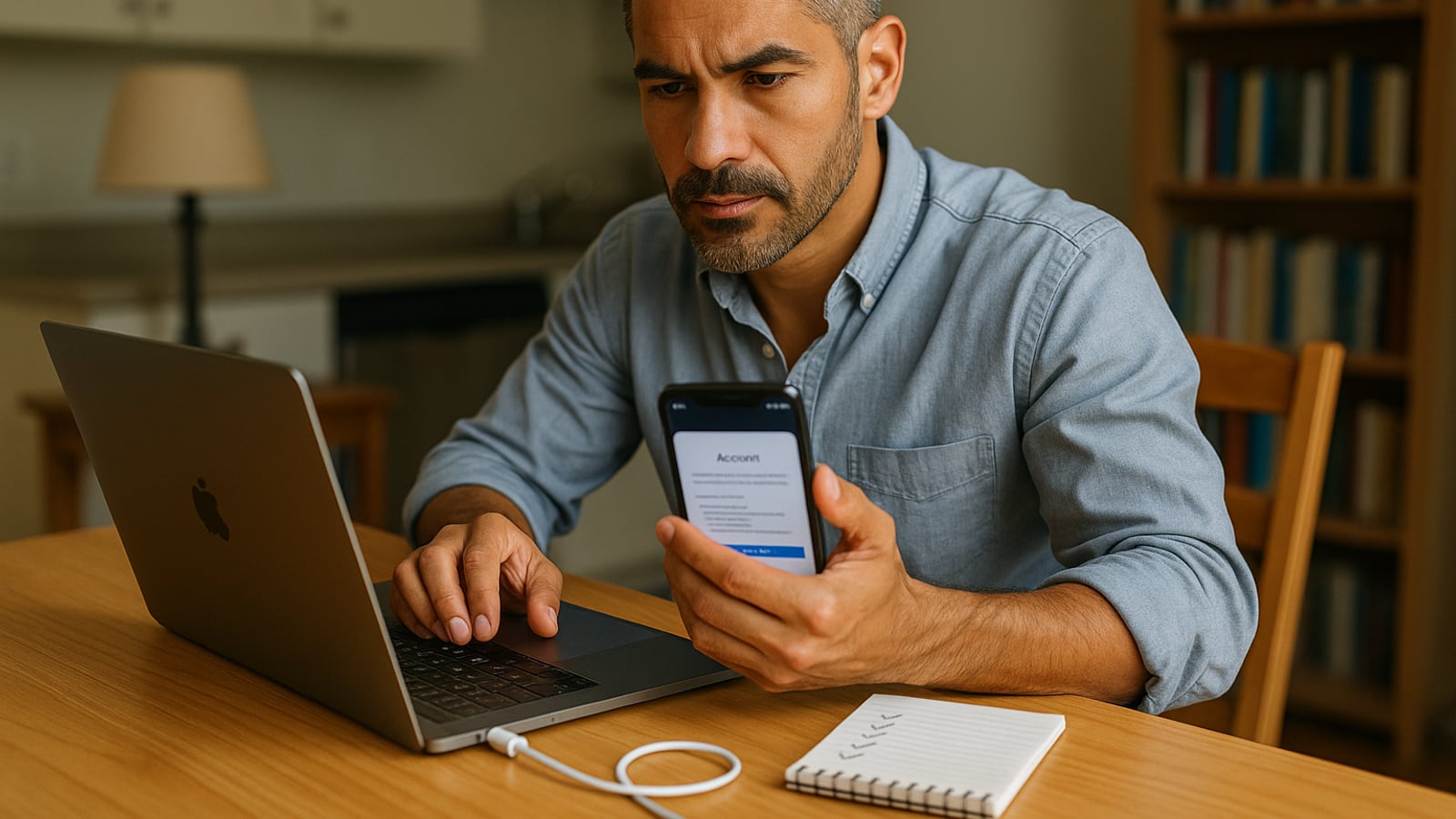
Sign out first. Erase second. That order is the whole game, and most people get it backwards.
Here's what backwards looks like. You wipe a MacBook from Recovery, hand it over for $400 cash in a coffee shop parking lot, and four days later the buyer messages you a photo of a login screen asking for an Apple ID that isn't his. The machine is locked to your account. You either walk him through a remote unlock or you refund him. Twenty minutes of prep would have avoided all of it.
The two locks you have to release
Modern phones and laptops carry an anti-theft lock tied to your account. Apple calls it Activation Lock. Google's version is Factory Reset Protection. Samsung layers its own reactivation lock on top of Google's. Wiping the device doesn't remove these. Signing out does.
So the sequence for anything with an account attached:
- Move your two-factor authenticator codes somewhere else, or print your recovery codes.
- Back up what you want to keep.
- Sign out of the manufacturer account.
- Erase.
- Remove the device from your account's device list on the web, as a check.
Step one trips people more than you'd expect. If your authenticator app lives only on the phone you're about to wipe, you can lose access to your email, your bank and your password manager in one tap. Transfer the codes before you touch anything else.
iPhone and iPad
Settings, General, Transfer or Reset iPhone, Erase All Content and Settings. It'll ask for your Apple ID password. That prompt is doing the important work: it signs you out of iCloud and clears Activation Lock as part of the wipe. Don't skip it by turning the phone off halfway.
Two things people forget. If you're keeping your number, transfer the eSIM to the new phone before you erase, because the wipe screen will offer to delete it and a deleted eSIM means a trip to the carrier. And unpair an Apple Watch from the phone rather than resetting the watch on its own. Unpairing backs the watch up and releases its Activation Lock in one move.
If the phone won't power on at all, you can't wipe it by hand. Go to iCloud.com, find the device in your list, and mark it for erase. It'll wipe the next time it connects to anything. Then remove it from the account.
Android
Remove the Google account first. Settings, Passwords & accounts, tap the account, Remove. Samsung phones need the Samsung account removed too. Then factory reset from Settings, System, Reset options.
Android has encrypted user data by default for years now, which means a factory reset throws away the key rather than trying to overwrite every cell. That's fast and it's genuinely effective. What it doesn't cover is the microSD card sitting in the tray. Pull it. Pull the SIM too, and check the tray twice, because the SIM slot on a lot of phones is deep enough to hide one.
Windows, and the reset that leaves your files behind
Settings, System, Recovery, Reset this PC, Remove everything. Then read the next screen carefully, because this is where the trap is.
Windows offers "Just remove my files" and "Fully clean the drive." The first one is quick and the data is recoverable with software any teenager can download. The second one takes hours on a spinning hard drive and is the one you want. Pick it. Go do something else.
Before that, deauthorize software licenses you paid for. Adobe, Office, some music production tools and most VPN clients count installs per account, and pulling an activation back off a machine you no longer own is a support ticket you don't want. Sign out of your Microsoft account and remove the PC from the device list at your account page on the web.
One more. Check whether BitLocker was ever on. If the drive was encrypted the whole time it owned your data, the reset is far stronger than a reset of an unencrypted drive. If it was never on, be more careful about the clean-drive option.
Macs
Apple Silicon Macs and Intel Macs with the T2 chip have the easy path: System Settings, General, Transfer or Reset, Erase All Content and Settings. Same behavior as the iPhone. It signs you out and wipes the encryption key.
Older Intel Macs need the long way. Sign out of iCloud, iMessage and your media account. Deauthorize the computer in Music. Restart holding Command-R, open Disk Utility, erase the internal drive, then reinstall macOS from Recovery. Leave the new machine at the setup screen for the buyer.
What to do about the drive itself
For any laptop older than about 2015, the cheapest form of certainty is to keep the drive. A 2.5-inch SATA drive comes out from under a single access panel on most business laptops. M.2 sticks are one small screw. Sell the machine without storage, say so in the listing, and knock the price down accordingly. Buyers who know what they're doing will take that deal happily.
If you'd rather destroy it, a spinning disk needs the platters ruined. A drill press or three solid hits with a hammer through the center of the casing does it. An SSD is different. Punching one hole in the board doesn't touch the memory chips, so either use the manufacturer's secure erase utility or physically break every chip on the board.
The honest answer is that all of this is easier if you turned encryption on the day you bought the thing. FileVault, BitLocker, the default on your phone. Then wiping the key is the wipe.
The devices nobody thinks about
- Game consoles. Deactivate the console as your primary or home system before you wipe it, or your digital licenses stay stranded on hardware you don't own.
- Cars. Infotainment systems keep paired phones, contact lists, call logs and every address you ever punched into navigation. Factory reset it, then remove the car from the manufacturer's app and from your account.
- Office printers and copiers. The big multifunction units have real hard drives holding scanned images. Ask the leasing company what happens to that drive.
- Routers. Hold the reset pin for ten seconds. Otherwise your Wi-Fi password, your network layout and any port forwarding go with it.
- Kindles, tablets and fitness trackers. Deregister from the account page on the web, not just from the device.
- The drawer. Old USB sticks, SD cards from a camera you replaced, an external backup drive from two laptops ago. These are the ones that actually leak, because nobody remembers they exist.
Where it should go
Trade-in programs from the manufacturer or carrier pay less than a private sale and take all the friction away. Marketplace pays more and costs you an afternoon and a stranger in your driveway. Both are fine. Pay off any carrier installment plan first, because a phone with a balance on it can be blocked later and the buyer will come looking for you.
For anything genuinely dead, find a recycler certified to R2v3 or e-Stewards rather than a random drop-off bin. Ask whether they wipe or shred, and for a work machine, ask for it in writing.
Then take the twenty minutes. The buyer never sees it, which is exactly the point.
Dean Shaw
Gear & Garage
Tests things until they break, then reports what broke first. Trucks, tools, watches, and the cheap version that costs more.

Watch
Worth an hour of your evening
More from Gadgets.
From channels we rate. Plays on YouTube.
Read next