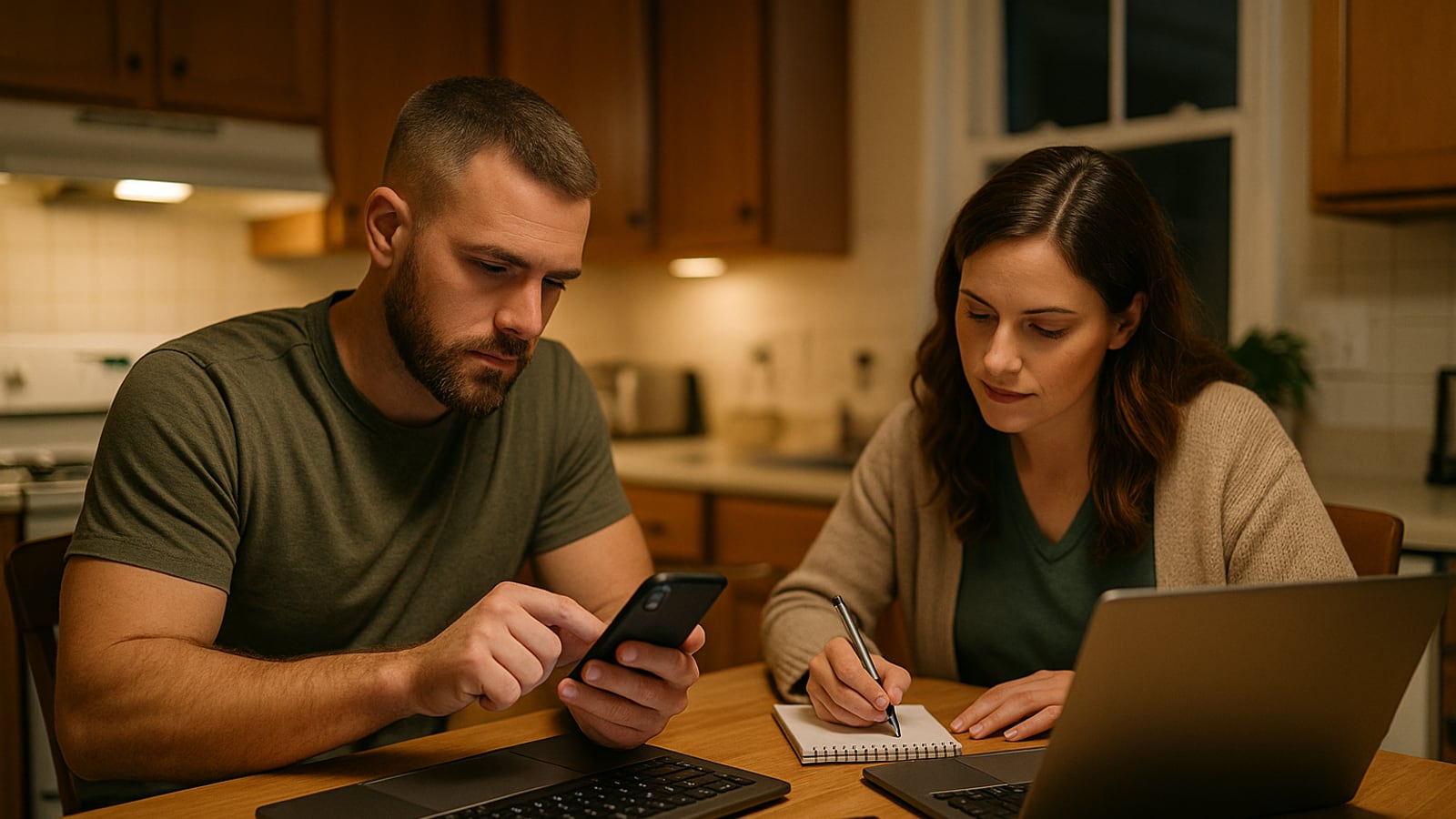
Block out two hours on a Sunday evening, after the younger kids are down. Bring a laptop, everyone's phones, a pen and a sheet of paper. Bitwarden's family plan covers six people for roughly forty dollars a year. 1Password's family plan is closer to sixty. Check the current price before you commit, because both change, but either one costs less than a month of the streaming services you're about to secure.
Pick one and don't spend the evening comparing them. Bitwarden is cheaper and open source. 1Password has the better interface and, in my experience, causes fewer arguments with people who don't like fiddling with software. Both are fine. The worst password manager you actually use beats the perfect one you researched for three weeks and never installed.
Start with the master password, and get it right once
This is the one password nobody can reset for you. Make it a passphrase: four or five unrelated words with a number and a bit of punctuation wedged in. Something like otter-gravel-hymn-42-lantern. Long and memorable beats short and clever. You'll be typing it on a phone keyboard, so avoid anything that needs three modifier keys.
Write it on paper. Yes, paper. Write your spouse's on the same sheet, put it in a sealed envelope, and put the envelope wherever you keep the passports and the birth certificates. If you have a fireproof document box, that's the spot.
Both services also generate a secret key or recovery file at signup. 1Password calls it the Emergency Kit. Print it. Don't just save the PDF to the desktop of the laptop you're trying to protect, which is what almost everybody does.
The import, and the mess it makes
Next, export the passwords sitting in Chrome, Safari or Edge and import them. Every manager has a guided importer and it takes about four minutes.
Then comes the part the setup guide skips. You'll import 240 entries and roughly 80 of them are garbage: dead accounts, duplicates from the same site saved three times, entries with no username. Don't clean all of it tonight. Sort by "last used" if the app lets you, delete anything from a site that no longer exists, and leave the rest.
Now go into your browser settings and turn off the built-in password saving. If you don't, the browser and the manager will both offer to save things and your family will pick whichever popup appears first. That's how you end up with two half-filled vaults and nobody knowing which is current.
Build the vault structure before you invite anyone
Do this on your own account first. It takes ten minutes and saves a fortnight of confusion.
You want something like:
- Family — the wifi password, the streaming accounts, the Amazon login, the router admin page, the utility accounts, the pediatrician portal.
- Parents — banking, mortgage, insurance, tax portals, the kids' school and medical records.
- Private — each person's own vault, which nobody else sees. This includes yours.
That last one matters more than it sounds. A teenager who thinks Dad can read every login won't use the thing. Neither will a spouse who wants a private vault for the account where she buys your Christmas present. Private vaults aren't a crack in the marriage. They're the reason the system gets used at all.
The twelve accounts that actually matter
You're not changing 240 passwords tonight. You're changing twelve, in this order:
- Your primary email. Everything else resets through it. If someone owns your inbox, they own your bank, your phone account and your kids' school portal.
- Your spouse's primary email.
- Your mobile carrier account. This is the one people forget. It's how SIM swap attacks work.
- Your bank and any brokerage.
- Amazon, or whichever retailer has your card saved.
- Apple ID or Google account.
Then stop. Let the manager handle the rest as you happen to log in to them over the next few months. It'll prompt you.
For each one, generate a 20-character random password, save it, and log out and back in immediately to confirm it took. That last step sounds unnecessary. Skip it once and you'll spend Tuesday morning locked out of your own bank.
Two-factor, and the honest trade-off
Turn on two-factor authentication on those same six or seven accounts. Use an authenticator app rather than SMS where you can, because text messages can be intercepted by anyone who talks your carrier into moving your number.
Both password managers can store the authenticator codes themselves. It's convenient. It also means one compromised master password gives up both factors at once, which defeats part of the point. My compromise: codes for streaming, shopping and forum logins go in the manager. Codes for email, banking and the carrier live in a separate authenticator app on the phone.
Whichever you choose, save the backup codes each service gives you. Put them in a vault item called something obvious like "Gmail recovery codes." You will need them the week a phone goes in a lake.
Getting the family on it without a fight
Send the invites. On each person's phone, the setup takes three minutes, but you have to go into the phone's own settings and enable the manager as an autofill provider. iOS buries it under Passwords. Android buries it under System. If you don't do this, autofill won't work, the person will decide the app is broken, and they'll go back to typing the dog's name.
Sit with each family member while they do their own setup. Don't do it for them.
For a ten-year-old, set them up with their own account and a passphrase you help them build. For a fifteen-year-old, do the same and then leave them alone. The teenager who gets a private vault and no interrogation about what's in it's the teenager who'll actually tell you when something looks like a scam.
The thing most families never do
Turn on emergency access. Bitwarden includes it on the family plan. On 1Password, a family organizer can recover another member's account. Set it so your spouse can reach your vault after a waiting period, and so you can reach hers.
Then write one page, by hand, that says where the envelope is and which service you use. Put it with the will, or with whatever you have in place of a will. If you don't have one of those, talk to an estate attorney. A locked vault and a grieving spouse who can't get into the mortgage account is a cruelty nobody intends.
What'll go wrong in week one
Somebody will save a password to the wrong vault. A site with a legacy login form won't autofill and will need manual copy-paste. The router page will reject your 20-character password because it caps at 16.
Fix them as they come. Don't rebuild the system.
Six weeks from now you'll notice something odd: you've stopped knowing any of your passwords, and it doesn't bother you at all. That's the whole point. The only one still in your head is the passphrase with the otter in it.
Dean Shaw
Gear & Garage
Tests things until they break, then reports what broke first. Trucks, tools, watches, and the cheap version that costs more.

Watch
Worth an hour of your evening
More from Gadgets.
From channels we rate. Plays on YouTube.
Read next