How to Back Up Family Photos So a Dead Phone Can't Take Them
Three copies, two kinds of storage, one off-site. One evening of work and about a hundred bucks a year keeps twelve years of your kids safe.
Three copies of every photo, on two different kinds of storage, with at least one copy somewhere that isn't your house. That's the whole answer. Photographers have called it the 3-2-1 rule for decades, it costs about a hundred dollars a year to run, and you can set it up in one evening after the kids go to bed. Everything below is just the how.
The reason people lose their photos isn't that hard drives are fragile. It's that they had exactly one copy and told themselves it was two. Your phone and iCloud are one copy in two places. When the phone deletes, the cloud deletes. That's sync, not backup, and the difference is the entire article.
Step 1. Find out how much you actually have
Open the storage screen before you buy anything. On an iPhone: Settings, your name, iCloud, Manage Account Storage. On Android: the Google One app, or photos.google.com and click the storage bar. Write down the number in gigabytes.
Most families with two kids and a decade of phones land somewhere between 80 GB and 600 GB. Video is what blows it up. Four minutes of 4K is about a gigabyte, and every soccer game you filmed sideways is sitting in there at full resolution.
That number decides your plan. Under 200 GB and this is cheap. Over a terabyte and you're buying a bigger drive.
Step 2. Turn on one automatic cloud backup and let it run
This is copy number one, and it has to be automatic, because you won't remember to do it manually. You won't. Nobody does.
If you're on iPhone: iCloud Photos, with iCloud+ storage. Apple's tiers run 50 GB for about a dollar a month, 200 GB for about three, and 2 TB for about ten. Family Sharing lets one 2 TB plan cover your wife and the kids' iPads, which is the version most households want.
If you're on Android: Google One. Roughly two dollars a month for 100 GB, about a hundred a year for 2 TB.
If you have Prime: Amazon Photos gives Prime members unlimited full-resolution photo storage, and a small allowance for video. You're already paying for Prime. Install the app, turn on auto-save, and you've got a free second cloud copy with no extra line on the credit card. Video still needs a home elsewhere.
Prices shift. Check the current one before you commit to a year.
Plug the phone in, get on home Wi-Fi, and let the first upload run overnight. A 300 GB library on a normal home connection can take two or three days. Don't babysit it.
Step 3. Pull a full copy down to a drive you own
Cloud is convenient. It's also an account, and accounts get locked, hacked, suspended by an algorithm, or closed because the card on file expired while you were on vacation. You want a copy that exists on a physical object in your closet.
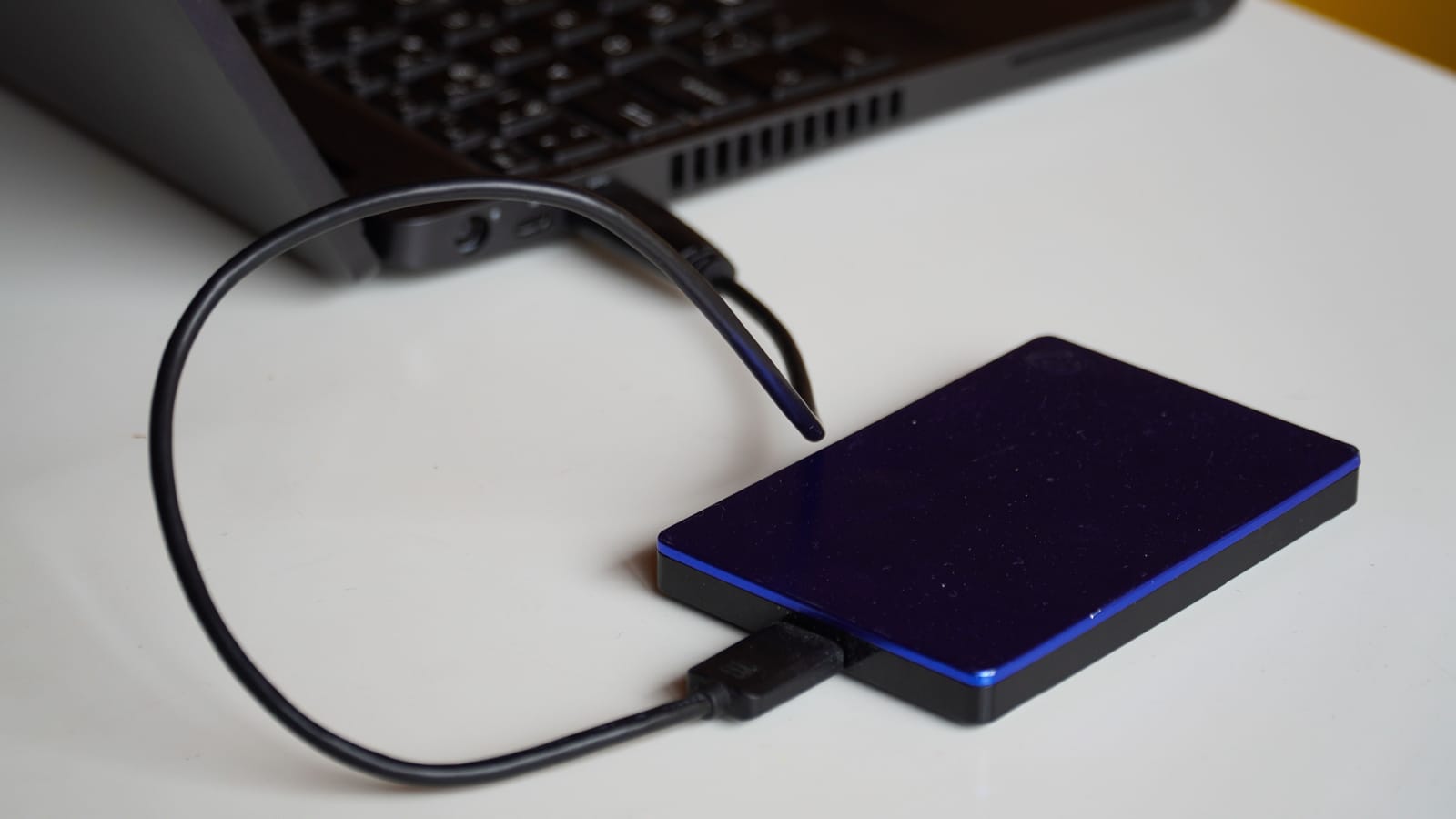
Buy an external drive. A 4 TB USB hard drive runs about a hundred dollars; a 2 TB portable SSD is usually in the same neighborhood and is faster and tougher. Either is fine. Get more space than you think you need, because you're going to add a kid's worth of photos every few years.
Now get the files out:
- Google: takeout.google.com. Select Google Photos only, choose .zip files at 50 GB each, and request the export. Google emails you download links, usually within a few hours, sometimes a day or two. Those links expire in a week, so download promptly.
- Apple: privacy.apple.com, sign in, "Transfer a copy of your data" or "Request a copy of your data." Same idea, same waiting.
- Fastest option: plug the phone into a computer with a cable and drag the DCIM folder over. Old-fashioned. Works.
Unzip everything into one folder named something painfully obvious. FamilyPhotos_Master. Future you will be grateful.
Step 4. Make the third copy live somewhere else
A house fire takes the phone, the laptop, and the drive in the closet in the same hour. So does a burst pipe over the office. The third copy has to be off-site.
Two clean ways to do it.
Automatic: a computer backup service like Backblaze, around nine dollars a month or ninety-nine a year per computer, unlimited space. Point it at the computer holding your master folder and forget it exists. It uploads the drive too, as long as you plug that drive in at least every 30 days.
Manual and free: buy a second drive, copy the master folder onto it, and take it to your parents' house or your brother's. Swap it every Thanksgiving and Easter. Two updates a year beats zero, and holiday-swap discipline is easier to keep than a monthly reminder.
Step 5. Test the restore before you need it
The step everybody skips. A backup you've never opened is a rumor.
Pick a photo you'd cry over. Your daughter at four, the one on the mantel. Now go get it out of the backup, on a different device than the one it came from. Open the drive on the laptop. Log into the cloud on your wife's phone. Find that exact file and open it.
If you can do that in under five minutes, you have a backup. If you hit a password you don't remember or a zip file that won't open, you found the failure now instead of on the worst day of your year. Fix it tonight.
Then put a recurring reminder on the calendar. Quarterly. Fifteen minutes. Plug in the drive, copy the new stuff over, open one photo.
Step 6. Decide who gets in if you're gone
Your photo library is an asset your family will need and can't get to without you.
Apple lets you name a Legacy Contact: Settings, your name, Sign-In & Security, Legacy Contact. It generates an access key your wife keeps. She'll need that key and a death certificate. Google has Inactive Account Manager under your account's Data & Privacy settings, where you choose how long the account sits idle before it hands designated people a download link.
Set both. It takes six minutes.
Where this gets legal, it varies by state. Nearly every state has now adopted some version of the Revised Uniform Fiduciary Access to Digital Assets Act, which governs whether your executor can reach your online accounts. The details of what your will has to say, and what the provider must honor, differ state to state. If you have a will, ask the attorney who wrote it to add language covering digital assets. If you don't have a will and you have kids, that's the bigger problem, and it's also a conversation with a lawyer in your state, not with an article.
The mistake almost everybody makes
Deleting photos off the phone "to free up space" and assuming the cloud kept them.
It didn't. iCloud Photos and Google Photos sync. Delete on the phone, it's gone from the cloud, and it sits in a Recently Deleted folder for about 30 days before it's gone for good. Millions of family photos die exactly this way, quietly, on a Tuesday, while somebody's clearing room for an app update.
So the order matters. Cloud on. Drive copy made. Restore tested. Then you're free to clean off the phone.
And print a dozen. Real prints, in a real album, on a shelf your grandkids can reach. No format on earth has a better track record than a photograph in a box, and the power's always on.
Dean Shaw
Gear & Garage
Reads the warranty, the parts list and the long-term owner reviews before anything else. Trucks, tools, watches, and the cheap version that costs more.

Watch
Watch how it's done
Picked for this article.
From channels we rate. Plays on YouTube.
Steph McKee TV
The 3-2-1 Backup Rule: How to Safely Store your Photos, Videos, and Files
ExplainingComputers
Data Backup: The 3-2-1 Rule
Read next